
Project Confidence When Presenting Remotely: 8 Shifts

What Is Remote Presentation Confidence?
Remote presentation confidence is the ability to project authority, credibility, and commanding presence through a screen — without relying on the physical cues (like room presence, handshakes, or spatial positioning) that naturally communicate power in person. It requires a distinct set of skills that translate leadership energy into a digital format.
Unlike in-person confidence, remote presentation confidence depends on deliberate technical and vocal adjustments. Your camera, lighting, framing, and vocal delivery become your primary tools for signaling expertise. Without these adjustments, even highly competent professionals can appear uncertain, disengaged, or forgettable on screen.
Why Remote Presenting Demands a Different Kind of Confidence
The "Presence Gap" on Screen
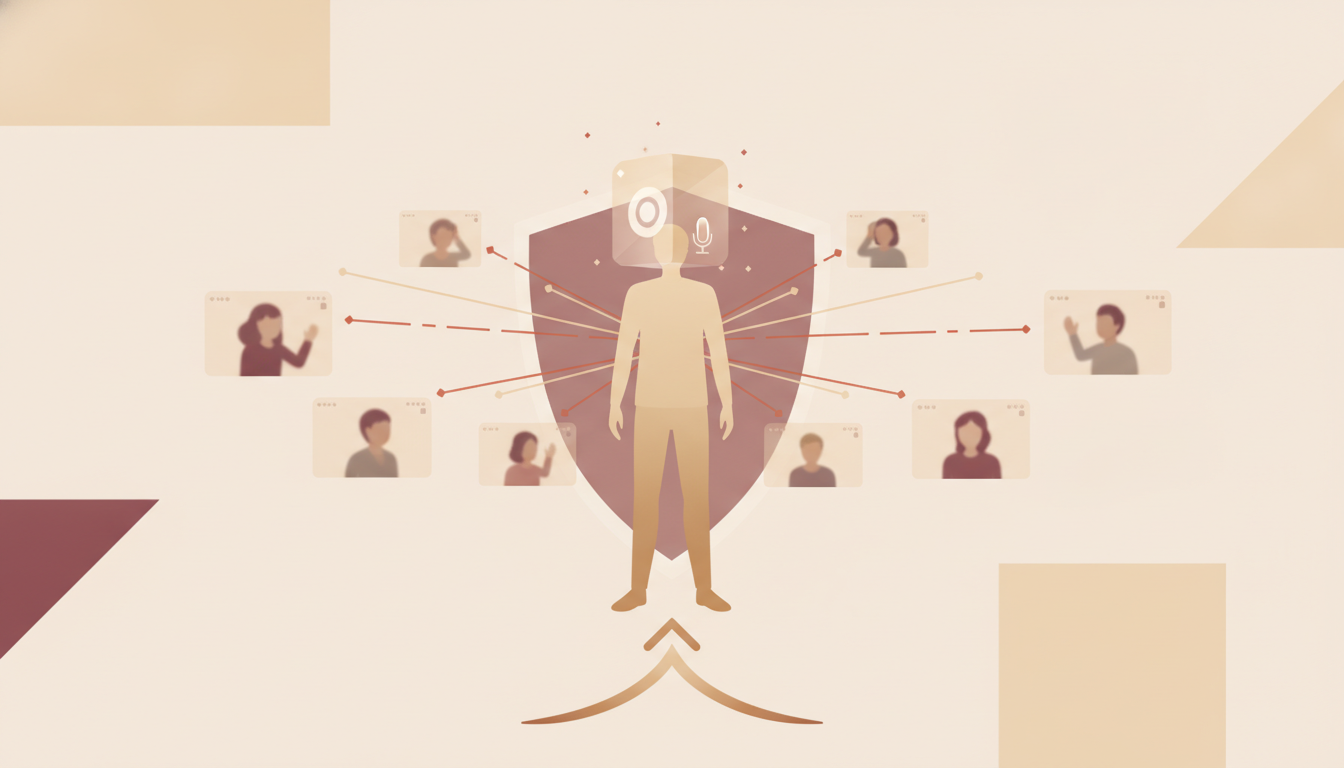
In a physical room, your height, posture, spatial awareness, and even the way you walk to the front convey authority before you say a word. On screen, all of that vanishes. You're reduced to a rectangle — the same size as everyone else.
Research from Stanford University's Virtual Human Interaction Lab found that prolonged video calls create "Zoom fatigue," with participants reporting reduced attention and engagement compared to in-person interactions (Bailenson, 2021). Your audience is already fighting distraction. If your delivery doesn't actively pull them in, you've lost them.
Why Good Content Isn't Enough
Many professionals assume that strong slides and solid data will carry a remote presentation. They won't. A study by Quantified Communications found that delivery accounts for approximately 38% of a speaker's persuasiveness, while content accounts for only about 7% — the remaining 55% comes from visual presence (Mehrabian's communication model, applied to virtual settings). On a screen, where visual cues are compressed, your delivery matters even more.
Consider this scenario: A senior product manager presents a quarterly roadmap to the executive team over Zoom. Her strategy is airtight. But she looks down at her notes, speaks in a flat monotone, and her face is half-shadowed by overhead lighting. The CFO checks email. The CTO mutes to take another call. The strategy was never the problem — the delivery was.
If you've ever felt overlooked or dismissed despite strong ideas, the remote format can amplify that problem significantly.
Shift 1: Master Your Camera Position and Framing
The Eye-Level Rule
Position your camera at eye level or slightly above. This is non-negotiable. When your camera sits below your face — as it does with most laptops on a desk — your audience looks up your nose. You appear to be looking down at them, which reads as disengaged or dismissive.
Stack your laptop on books, invest in a laptop riser, or use an external webcam mounted on your monitor. The goal: your eyes should be in the top third of the frame, with a few inches of space above your head.
The "Newsreader Frame"
Frame yourself from mid-chest up. Too close and you feel invasive. Too far and you seem disconnected. Think of how a news anchor appears on screen — authoritative, approachable, and properly framed.
Leave some space on either side of your shoulders, but don't sit so far back that you become a small figure in a large room. According to a 2022 study published in Computers in Human Behavior, participants rated speakers with tighter, well-framed shots as 23% more competent and trustworthy than those with wide, unfocused framing (Ratan et al., 2022).
Background and Lighting as Authority Signals
Your background communicates before you speak. A cluttered, chaotic background signals disorganization. A dark, shadowy frame signals low energy. Position yourself facing a window for natural light, or use a ring light placed behind your camera.
Choose a clean, professional background — a bookshelf, a neutral wall, or a tasteful virtual background if your space doesn't cooperate. The key is intentionality. Every visual element in your frame either builds or erodes credibility.
Shift 2: Amplify Your Vocal Energy and Pacing
The 20% Energy Rule
Here's a principle that separates confident remote presenters from forgettable ones: whatever energy level feels natural to you, increase it by 20%. The screen compresses your energy. What feels "enthusiastic" in person reads as "adequate" on camera. What feels "calm and collected" in person reads as "flat and bored" on screen.
This doesn't mean shouting or performing. It means projecting your voice slightly more, varying your pitch more intentionally, and bringing more animation to your delivery. Practice by recording yourself and watching the playback — most professionals are surprised by how much flatter they appear on screen than they feel in the moment.
If you struggle with vocal authority in general, these proven methods for sounding confident in presentations translate directly to the remote context.
Strategic Pausing
Pauses are your most powerful tool in remote presentations. They create emphasis, give your audience time to absorb key points, and signal confidence. Uncertain speakers rush to fill silence. Confident speakers use silence deliberately.
After making a key point, pause for a full two seconds. Before transitioning to a new section, pause for three. It will feel uncomfortably long to you. It will feel perfectly natural — and authoritative — to your audience.
A Harvard Business Review analysis of executive communication patterns found that senior leaders pause 30-50% more frequently than mid-level presenters, and their pauses are twice as long on average (HBR, 2019). Pausing signals that you trust your message enough to let it land.
Shift 3: Maintain Direct Camera Eye Contact
Why Eye Contact Is Different on Screen
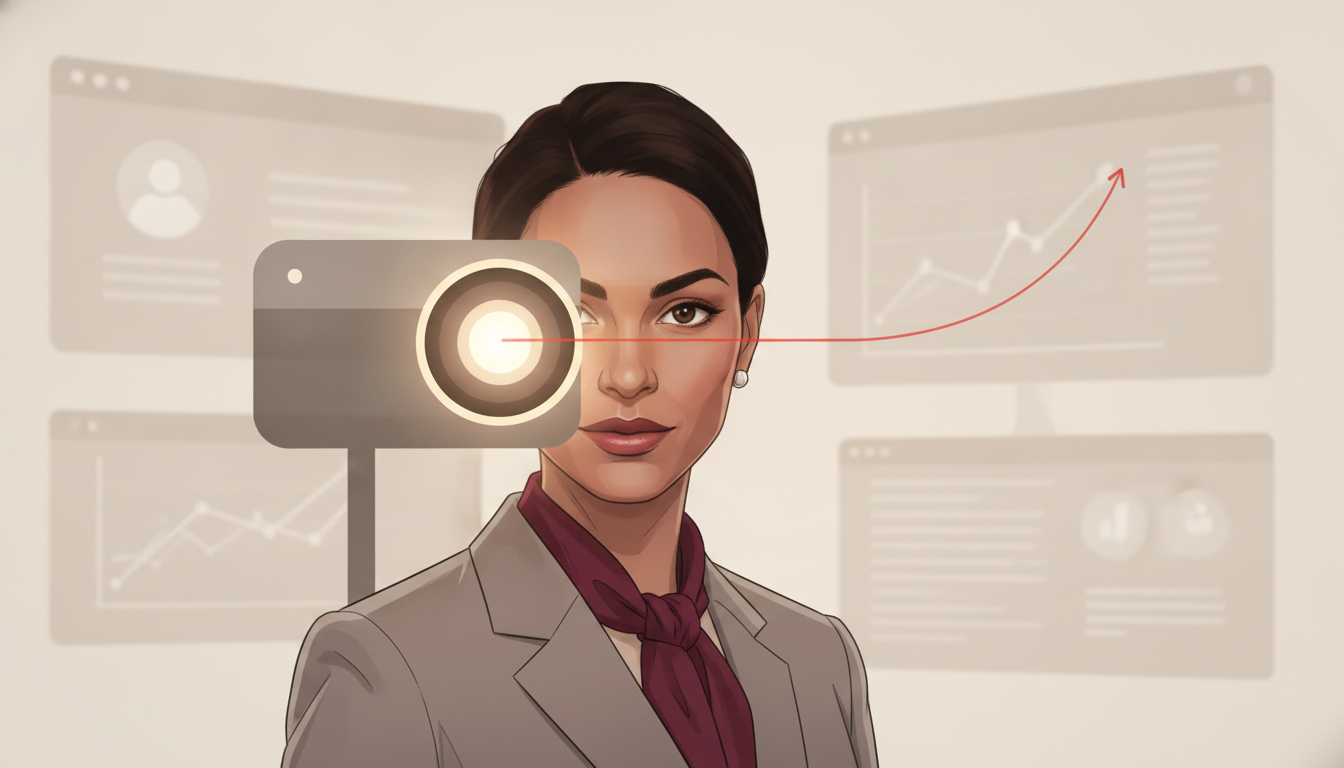
In person, you make eye contact by looking at people's eyes. On screen, the instinct is the same — but it's wrong. When you look at someone's face on your monitor, you appear to be looking slightly downward or to the side on their screen. To create the effect of direct eye contact, you must look at your camera lens.
This feels unnatural at first. You're looking at a small dot instead of the faces of your colleagues. But the impact is dramatic. Looking into the camera creates the sensation that you're speaking directly to each viewer individually.
The 70/30 Practice
You don't need to stare at the camera 100% of the time — that can feel intense and robotic. Aim for the 70/30 rule: look at your camera 70% of the time (especially when making key points or during your opening and closing), and glance at your screen 30% of the time to read the room, check reactions, or reference notes.
Place a small sticky note with a dot or arrow near your camera as a visual reminder. Over time, this becomes automatic. Many executives who've built their presence in virtual meetings cite camera eye contact as the single highest-impact change they made.
Shift 4: Open with Authority, Not Apology
Kill the Weak Opening
The first 30 seconds of a remote presentation determine whether your audience stays engaged or mentally checks out. Yet most professionals open with some version of:
- "Can everyone hear me okay?"
- "Sorry, let me just share my screen..."
- "So, um, I guess I'll get started."
- "I know everyone's busy, so I'll try to be quick."
Every one of these signals uncertainty. They tell your audience: I'm not fully in control of this moment.
Instead, open with a confident, direct statement. Try one of these frameworks:
The Bold Claim: "The data from Q3 tells us one thing clearly — our current strategy won't get us to our revenue target. Here's what I'm proposing instead." The Relevant Question: "What would it mean for this team if we could cut our customer acquisition cost by 30% in the next two quarters? That's exactly what I'm going to walk you through today." The Outcome Preview: "In the next 15 minutes, I'll share three changes to our product roadmap that will directly address the retention problem we've been discussing for months."For a deeper dive into structuring high-impact openings, see our guide on how to present ideas without rambling.
The "First Sentence, No Filler" Rule
Write out your first sentence word for word. Memorize it. Deliver it cleanly, without filler words, hedging, or qualifiers. This single practice changes the trajectory of your entire presentation.
When your first sentence lands with clarity and conviction, your audience's brain categorizes you as someone worth listening to. That categorization — made in seconds — influences how they interpret everything that follows.
Shift 5: Eliminate Credibility-Killing Habits
Filler Words and Hedging Language
"Um," "uh," "like," "you know," "sort of," "kind of," "just," "I think maybe" — these words are confidence leaks. In person, they're partially masked by your physical presence. On screen, where your voice carries disproportionate weight, they're amplified.
A University of Michigan study found that speakers who used fewer filler words were rated as 15% more credible and 20% more competent by listeners (Schachter et al., updated findings via Journal of Communication). In remote settings, where audio quality varies and attention spans are shorter, this effect is even more pronounced.
Start by recording your next practice run and counting your filler words. Most people are stunned by the number. Then work on replacing fillers with pauses. A pause where an "um" used to be sounds intentional and powerful. For a comprehensive list of language habits that undermine your authority, explore 12 words that undermine your credibility at work.
Self-Deprecating Qualifiers
Watch for phrases that preemptively diminish your message:
- "This might be a dumb question, but..."
- "I'm not sure if this is right, but..."
- "I'm no expert, but..."
- "Sorry, this is just my opinion..."
These are credibility killers in any format. In a remote presentation, where you already have fewer tools to establish authority, they're devastating. State your points directly. If you're uncertain about a data point, say "I'll confirm the exact figure and follow up" — that's honest and authoritative. Self-deprecation is neither.
Shift 6: Use Purposeful Gestures and Movement
The "Visible Hands" Principle
Keep your hands visible in the frame. Research on body language and trust — including findings from the Center for Body Language — shows that visible hands increase perceived trustworthiness. When your hands disappear below the frame, your audience's subconscious registers a subtle discomfort.
Use your hands to emphasize key points, count off items in a list, or create visual structure. But keep gestures controlled and within the frame. Wild, expansive gestures that work in a conference room become distracting in a small video window.
Stillness as Power
Equally important: don't fidget. Swaying, rocking, touching your face, adjusting your hair, or clicking a pen — all of these read as nervousness on screen. Confident speakers are still when they're not gesturing. They hold their posture. They occupy their space without apology.
Practice presenting with your feet flat on the floor and your back straight but relaxed. Anchor yourself. This physical stillness translates directly into perceived confidence. For more on how body language builds authority, see our complete guide on body language that conveys authority.
Your Confidence System Is Waiting. From virtual presentations to high-stakes negotiations, The Credibility Code equips you with frameworks that build lasting professional authority. Discover The Credibility Code and transform how people perceive you — starting today. Discover The Credibility Code
Shift 7: Control the Technical Environment
Audio Quality Is Credibility
A 2023 study from the University of Southern California found that poor audio quality caused listeners to rate speakers as less intelligent, less competent, and less likable — even when the content was identical to a high-quality recording (Newman & Schwarz, PNAS). Your microphone matters more than your slides.
Invest in a dedicated USB microphone or, at minimum, use wired earbuds with a built-in mic. Avoid relying on your laptop's built-in microphone, which picks up keyboard noise, room echo, and fan hum. Test your audio before every important presentation.
Internet and Platform Mastery
Nothing destroys confidence faster than a frozen screen or a dropped connection. Before high-stakes remote presentations:
- Use a wired ethernet connection when possible
- Close unnecessary browser tabs and applications
- Test your screen-sharing setup in advance
- Have a backup plan (phone dial-in, pre-sent slides) if technology fails
Knowing that your technology is solid frees your mental energy for delivery. You can focus on commanding the room instead of worrying about buffering.
Shift 8: Structure for Engagement, Not Just Information
The 5-Minute Attention Reset
Remote audiences lose focus faster than in-person ones. Plan an engagement moment every five minutes: a direct question, a poll, a brief story, a shift in visual format, or a provocative statement that re-captures attention.
For example, if you're presenting a 20-minute strategy update, build in four engagement resets:
- Minute 0-5: Bold opening claim + context
- Minute 5: Direct question to the group — "Before I go further, what's your biggest concern about this approach?"
- Minute 10: A brief story or case study that illustrates your point
- Minute 15: A visual shift — switch from slides to whiteboard, or from data to a demo
- Minute 20: Strong closing with a clear call to action
Close with Conviction, Not a Whimper
End your presentation the way you started it — with authority. Don't trail off with "So, yeah, that's pretty much it" or "I guess we can open it up for questions?"
Instead, deliver a clear closing statement: "Here's what I'm recommending, and here's the decision I need from this group by Friday." Then pause. Let it land. Confident closers don't rush past their own conclusions.
If you want to master the full arc of presenting to senior audiences, our guide on how to prepare for a high-stakes presentation covers everything from preparation to delivery.
Frequently Asked Questions
How do I project confidence on Zoom when I feel nervous?
Preparation is your best tool against nervousness. Script your first and last sentences, test your technology in advance, and use the 20% energy rule to push past the flatness that nerves create. Focus on your camera lens rather than your own video thumbnail — watching yourself increases self-consciousness. Physical anchoring (feet flat, back straight, hands visible) also reduces visible anxiety signals. For more techniques, see our guide on how to project confidence when nervous at work.
What equipment do I need for professional remote presentations?
At minimum, you need an external webcam or laptop riser (for eye-level camera positioning), a dedicated USB microphone or quality wired earbuds, and a front-facing light source. A ring light ($20-50) dramatically improves how you appear on screen. A wired internet connection adds reliability. You don't need expensive gear — intentional setup with basic equipment outperforms a careless setup with premium tools.
Remote presentation confidence vs. in-person presentation confidence: what's different?
In-person confidence relies heavily on physical presence — your posture, movement through space, handshake, and spatial positioning. Remote confidence replaces those cues with technical and vocal signals: camera framing, lighting, vocal energy, eye contact with the camera lens, and deliberate gestures within a small frame. The core mindset is the same, but the execution requires specific adjustments for the digital format. Both benefit from preparation, but remote presenting demands more intentional energy amplification.
How do I keep my remote audience engaged during a long presentation?
Build engagement resets every five minutes. Use direct questions, polls, brief stories, or visual format shifts to recapture attention. Call on specific people by name ("Sarah, I'd love your perspective on this") rather than asking open-ended questions to the group. Keep your slides visual rather than text-heavy — dense slides encourage multitasking. Shorten your presentation whenever possible; a tight 15-minute presentation beats a meandering 30-minute one every time.
How do I handle technical difficulties without losing credibility?
Acknowledge the issue briefly, calmly, and without excessive apology. Say "It looks like we have a brief technical issue — give me 10 seconds" rather than "Oh no, I'm so sorry, this always happens to me." Have a backup plan ready: slides pre-sent to attendees, a phone dial-in number, or a colleague who can share their screen if yours fails. How you handle disruption communicates more about your leadership presence than a flawless presentation ever could.
Should I use a virtual background for remote presentations?
Use a virtual background only if your physical space is distracting or unprofessional. A clean, real background is always preferable — it looks more natural and avoids the visual glitches (hair disappearing, blurred edges) that virtual backgrounds create. If you must use one, choose a simple, static image — never an animated or novelty background for professional presentations. Test it in advance to ensure it renders cleanly with your camera and lighting setup.
Category: Public Speaking Tags: remote presentations, virtual presence, public speaking, confidence, video calls Featured Image Alt Text: Professional presenting confidently on a video call with proper camera framing, lighting, and engaged posture
Speak So the Room Takes You Seriously
The Credibility Code covers the verbal patterns that make presenters sound authoritative, and the ones that make audiences tune out.
Discover The Credibility CodeRelated Articles

How to Handle Q&A After a Presentation Like a Pro
To handle Q&A after a presentation like a pro, prepare for likely questions in advance, use a structured response framework (like the PREP method: Point, Reason, Example, Point), and maintain confident body language throughout. When you don't know an answer, say so honestly and offer to follow up. Set clear ground rules at the start of Q&A, repeat each question for the audience, and always end on your terms by closing with a prepared final statement that reinforces your core message.

Managing Speaking Anxiety at Work: 8 Proven Methods
To manage speaking anxiety at work, use evidence-based techniques that target your body's stress response before and during everyday speaking moments. The most effective methods include controlled breathing to lower cortisol, cognitive reframing to shift your threat response, structured preparation frameworks for impromptu moments, and progressive exposure to build tolerance over time. These techniques work for team updates, all-hands questions, and hallway conversations — not just formal presen

Handle Public Speaking Mistakes Gracefully: Pro Recovery
To handle public speaking mistakes gracefully, pause instead of panicking, acknowledge the error briefly without over-apologizing, then redirect your audience's attention forward. The key insight most speakers miss: audiences judge you far more on your *recovery* than on the mistake itself. A composed, even slightly humorous recovery can actually boost your credibility—because it signals confidence, self-awareness, and the kind of poise that audiences instinctively trust. Below, you'll find exac